
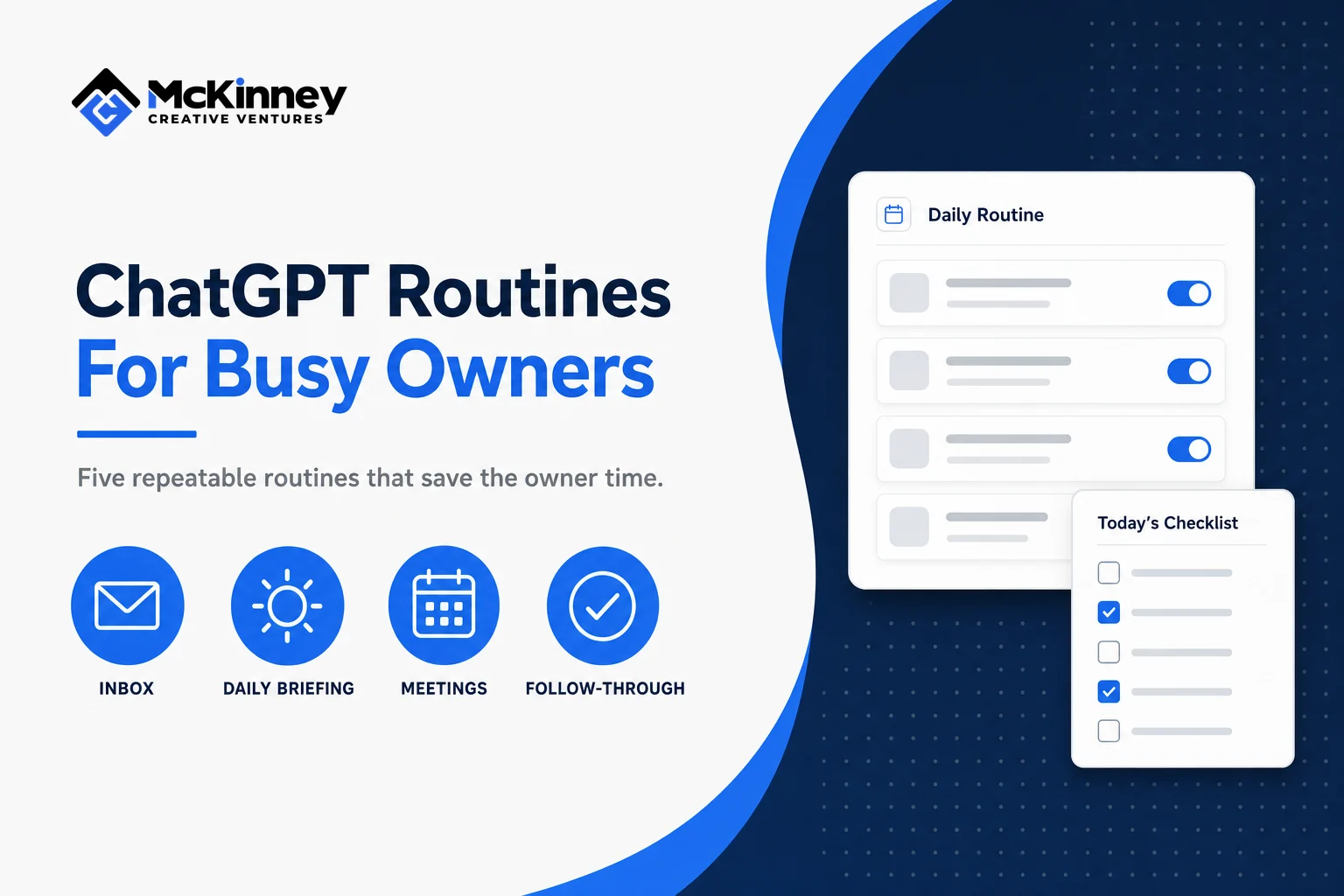
ChatGPT routines for small business owners are saved prompts that run the same careful check on work you already do: sorting email, planning the day, preparing for a meeting, recording what was decided, and spotting who deserves a follow-up. This guide gives you five of them, written for owners of service businesses in the Twin Cities East Metro, the St. Croix Valley and western Wisconsin.
Start with one routine. Give it only the information it needs, check the output against the source, and keep every send, edit and record change under your approval. After the five routines, the guide covers how to turn one person's casual use into a habit your whole team follows.
Set up ChatGPT routines for small business owners with a narrow scope
ChatGPT reaches your email, calendar and files through connected apps. OpenAI's guide to connecting app accounts says an app must be available for your plan, region, account, supported surface and workspace, and that you add one under Settings, then Plugins. It says to choose the account that already has access to the information you need, and that connecting a personal account does not give access to records held only in your work account.
Run your first routine by hand on a small, recent slice of information, and check that ChatGPT used the right account and can point to its sources.
A connected app can also act on your behalf. OpenAI's connected apps page lists the permission options as Always ask, Allow read actions, Allow low-risk actions and, for an eligible app or account, Allow all actions, which it says carries elevated risk because actions may run without another confirmation. In our reading, an owner starting out should stay on the setting that asks first.
Scroll to see all columns
| Routine | What you give it | What you review | A situation where it helps |
|---|---|---|---|
| Inbox Command Center | Last business day of email from one mailbox | A sorted queue with source references | The spring scheduling rush, when requests pile up overnight |
| Morning Business Briefing | Today's calendar and recent email | Schedule, priorities, loose ends | Winter mornings with emergency calls reshuffling the day |
| Meeting Preparation | One event and the related history | A short brief and open questions | Supplier, inspector or property manager meetings |
| Meeting Follow-Through | Notes you are allowed to use | Decisions, owners, draft follow-up | Year-end estimates and scope changes |
| Follow-Up and Referral Radar | A short lookback of conversations | Up to five people, each with a reason | Past customers on both sides of the St. Croix |
1. Inbox Command Center: decide what needs a response
A busy inbox is not a to-do list. This routine turns recent messages into a reviewable queue, without changing their status or sending anything.
In our experience the spring rush is when this earns its place. Service requests arrive at night and on weekends, and the ones that mention a deadline get buried under vendor mail. Read the top items yourself before acting.
Review business email from the last business day in the account I specify. Group the messages as Urgent, Needs Reply, Follow-Up, Informational, or Low Priority. For each actionable item, give the sender, subject, date, why it matters, and a source reference. Number the actionable items. Draft replies only for messages I select. If you cannot access the mailbox or a message, say so. Do not send, archive, delete, or mark anything as read without my approval.2. Morning Business Briefing: see the day before it starts
A morning briefing puts the calendar and inbox in one view.
Winter tests this routine. When a cold snap brings emergency calls, the planned schedule can change early in the day, and a briefing that still lists last night's plan is worse than none. Ask it to flag anything it could not verify, and rerun it when the day changes.
Using the calendar and email accounts I specify, prepare today's business briefing. Use these sections: Today's Schedule, Needs Attention, Meetings to Prepare For, Top Three Priorities, and Loose Ends. Separate confirmed facts from your recommendations. Include source references for messages and events. Flag conflicts and items you could not verify. Do not send messages, change events, or update records. If a source is unavailable, tell me which section is incomplete.3. Meeting Preparation: walk in with context
A good meeting brief is short enough to read before you join.
In our experience, owners here often meet a supplier, a building inspector, a property manager and a referral partner in the same week, across Minnesota and Wisconsin jobs. A brief that reminds you what you promised last time saves an awkward start. Ask for one meeting at a time and have the routine label any undocumented commitment as unknown.
Prepare me for the next meeting I identify. Use its calendar event and only the related email or notes I authorize. Give me the attendees, time, location or link, likely purpose, prior discussion, open commitments, and two or three useful questions. Cite the source of each important fact. Mark missing context as unknown, and do not invent a relationship history or meeting objective. Do not contact anyone or edit the calendar.4. Meeting Follow-Through: make decisions visible
Notes only help when the right people know what was decided and who owns the next step. This routine turns approved notes into an action record and drafts a follow-up email that stays unsent until a person checks the names, promises and dates.
If you record or transcribe a meeting, confirm that everyone was told and that your use of the notes follows your policies and any rules that apply to you. At year end, when estimates and scope changes stack up, the separation between a decision and an idea that was only discussed keeps a tentative "maybe we can add the second bathroom" from becoming a quoted line item.
Using only the meeting notes or transcript I provide, summarize the discussion in these sections: Summary, Decisions, My Commitments, Commitments From Others, Deadlines, and Next Steps. Quote or reference the source passage for important decisions and dates. Flag unclear owners or missing deadlines and do not guess. Draft a short follow-up message for my review. Do not send it, create tasks, or change CRM records without my explicit approval.5. Follow-Up and Referral Radar: notice the right relationships
Not every old conversation calls for a follow-up. This routine looks for a reason to reconnect, such as a promised update, an introduction or a finished project, and proposes a short list. It does not run an outreach campaign.
Use a limited lookback, such as the past two weeks, cap the list at five people, and exclude anyone who declined contact. For a business whose work comes from word of mouth across the East Metro and the St. Croix Valley, a short list of people you genuinely owe a note beats a long one.
Review the business email and calendar history I authorize from roughly the past two weeks. Suggest up to five people who may deserve a thoughtful follow-up or referral check-in. For each, show the last contact, the specific reason to reconnect, a suggested next step, and a source reference. Exclude people who declined contact. If the reason is unclear, leave them off the list. Draft messages only after I choose a person. Do not send anything or update a CRM without my approval.This routine works best next to a real relationship process. A connected CRM and automation system can record the next steps you approve, while you decide when a message is useful and how it should sound.
Turn casual ChatGPT use into a team routine
In our experience, employees already use ChatGPT on their own: a dispatcher rewrites a customer text, an estimator summarizes a call. Nobody else can reuse those private prompts, and nobody has agreed what may be pasted. A routine becomes a team habit when four things are written down. This is our advice, and OpenAI does not require it.
A shared prompt library
Keep the tested prompts in one shared document, each with a name, the exact text, the inputs it needs and the date it was last tested. OpenAI's scheduled tasks page describes a share link that carries the task title, instructions, schedule and original time zone, and says a recipient uses their own account permissions and connected app access. It also warns that anyone who can open the link can read the full instructions, so keep names, account numbers and passwords out of them.
A named owner for each routine
One person tests each routine after a change, retires it when it stops being useful, and answers questions about it. A prompt with no owner drifts, and a drifting prompt produces confident output nobody checks.
A review step before anything leaves the building
Decide which outputs need a second pair of eyes. In our view, anything that reaches a customer, quotes a price, promises a date or changes a record should be read by the person who owns the customer relationship. Generate drafts freely. Sending is a human act.
Rules for what may be pasted
Write a short list of what never goes into a prompt without approval. For a home service company, that usually means payment card numbers, passwords, alarm and gate codes, and anything a customer shared about their health or finances. The FTC's Protecting Personal Information guide for business, dated October 2016 and written before tools like ChatGPT, lists "Keep only what you need for your business" as one of its five principles. In our reading, it is also a good test for what to paste. Then read your own plan's data terms and settings: OpenAI's connected apps page says app permissions are separate from Memory, data retention and choices about whether content may be used to improve models. We do not summarize how a given plan retains data, so confirm it in your plan's terms and, where it applies, with your attorney.
Schedule a routine only after it works by hand
After a few manual runs produce reliable output, decide whether scheduling adds anything. Keep a quality check: did it use the correct accounts, cite the items that matter, flag what it could not see, and ask before acting?
The scheduled tasks page states the limits plainly. As of November 2026 it lists active task limits of 3 for Free and Go, 5 for Plus, 10 for Business and Edu, and 15 for Pro and Enterprise, and says limits for other eligible plans depend on the account or workspace. It says a completed scheduled task in Chat can use your plan's usage allowance or workspace credits even when it does not post an update, and that an action that sends a message or changes external data may require approval, in which case the task pauses until you review it. Availability depends on your account, app and app version.
If a task stops running or a connection fails, check Scheduled for a paused task or a pending approval, then work through OpenAI's troubleshooting guide for plugins and apps.
Measure the routines by whether you start the day with fewer surprises and follow through on real commitments. Our guide to practical AI for local service businesses covers how to find repeatable work worth handing to a tool, and the same thinking applies to how fast a new inquiry gets answered. If you want the follow-ups you approve tracked in a CRM that shows where every lead stands, talk with us about CRM and automation.